
TUNGTEK / WINDOWS / TEKFIX
How to uninstall Cloudflare One Client on Windows in four steps
Uninstall Cloudflare One Client on Windows with appwiz.cpl, handle uninstall code requests, investigate reinstallation and check connectivity after restart.
Article contents
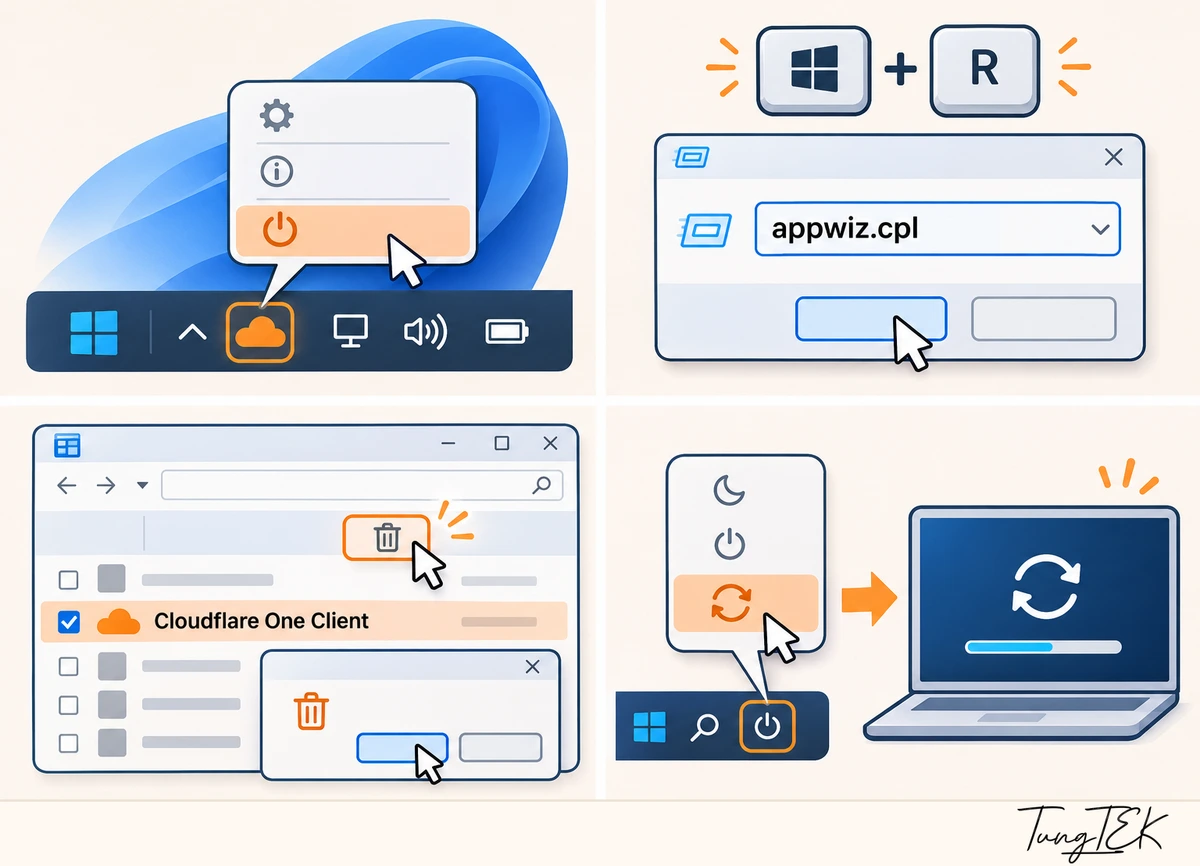
Before removing Cloudflare One Client from Windows, confirm whether the device uses it to access company systems. Once IT has approved the removal, use Programs and Features or Windows Settings. This guide covers four practical steps, post-removal checks and what to investigate if the application returns.
Identify Cloudflare One Client before making changes
Cloudflare One Client, previously called WARP, is Cloudflare software for device connectivity and access controls. Its actual role depends on the client mode and organization configuration. Record the application name, version, publisher and connection status shown on the device.
In the situation submitted to TUNGTEK, several Windows devices displayed an installation date of 24 October 2026. The Installed On field provides a time reference for investigation. IT needs deployment records and relevant logs to identify the installation source. The application name and a shared date alone do not establish the cause.
Prepare for the removal
Choose a suitable time to avoid interrupting work. If supporting the device remotely, agree how to reconnect or contact the user if the session drops.
- Confirm with IT that removal is approved and that access to required company resources has been arranged.
- Save open work. Capture the application details and record the device name for IT to correlate with logs.
- Arrange administrator access if Windows requires it. If the organization has enabled uninstall protection, obtain a valid code from its administrator.
Step 1 — Exit the application interface in the system tray
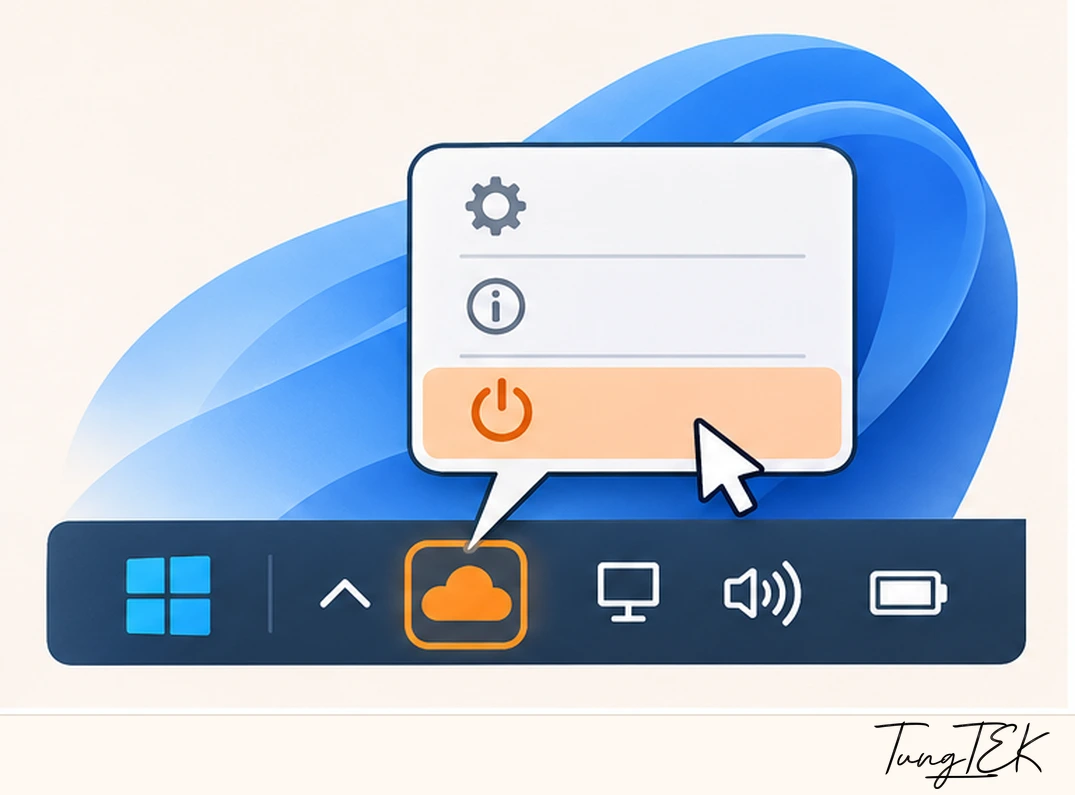
At the lower-right of the Windows taskbar, expand the hidden tray icons. Find the Cloudflare icon, right-click it and choose Exit or Quit if that option is available in your version.
Exit closes the application interface. The background service may remain active. If there is no Exit option, continue to the installed applications list and follow the official uninstaller.
Step 2 — Open Programs and Features with appwiz.cpl
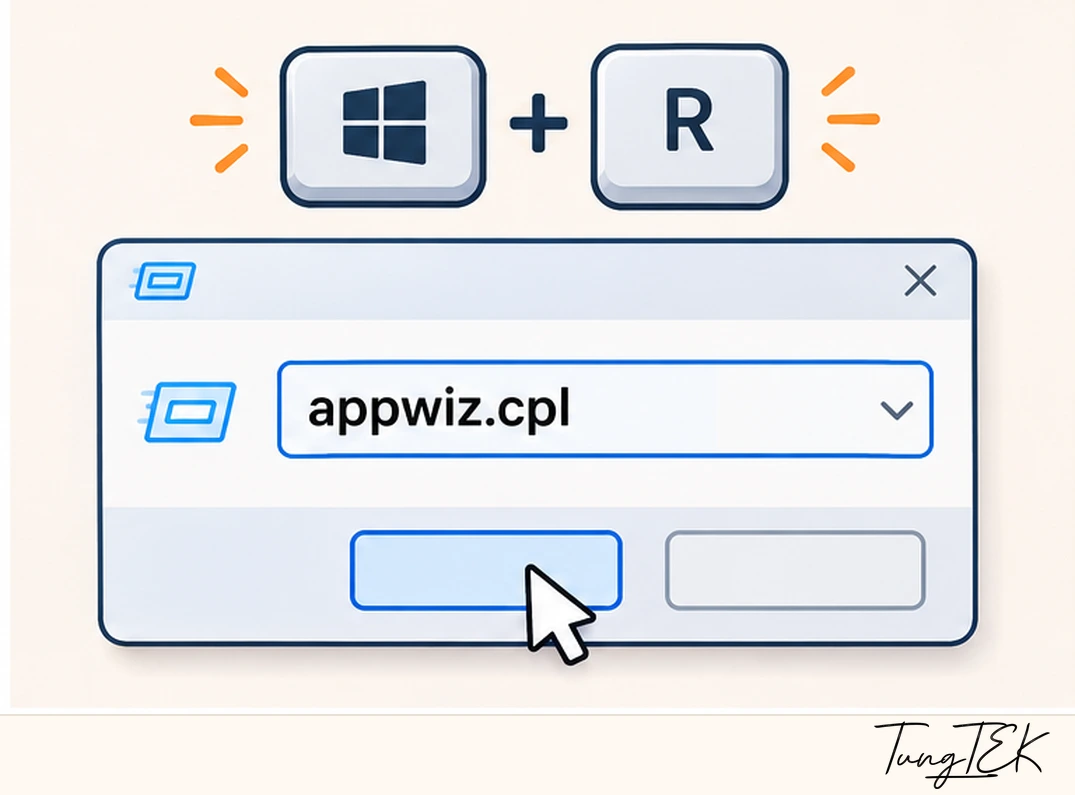
Press Windows + R to open Run. Enter the following command and press Enter. Windows opens Programs and Features in Control Panel.
appwiz.cpl- Alternatively, press Windows + I, select Apps, then Installed apps. Some Windows 10 versions call this page Apps & features.
Step 3 — Select Cloudflare One Client and uninstall
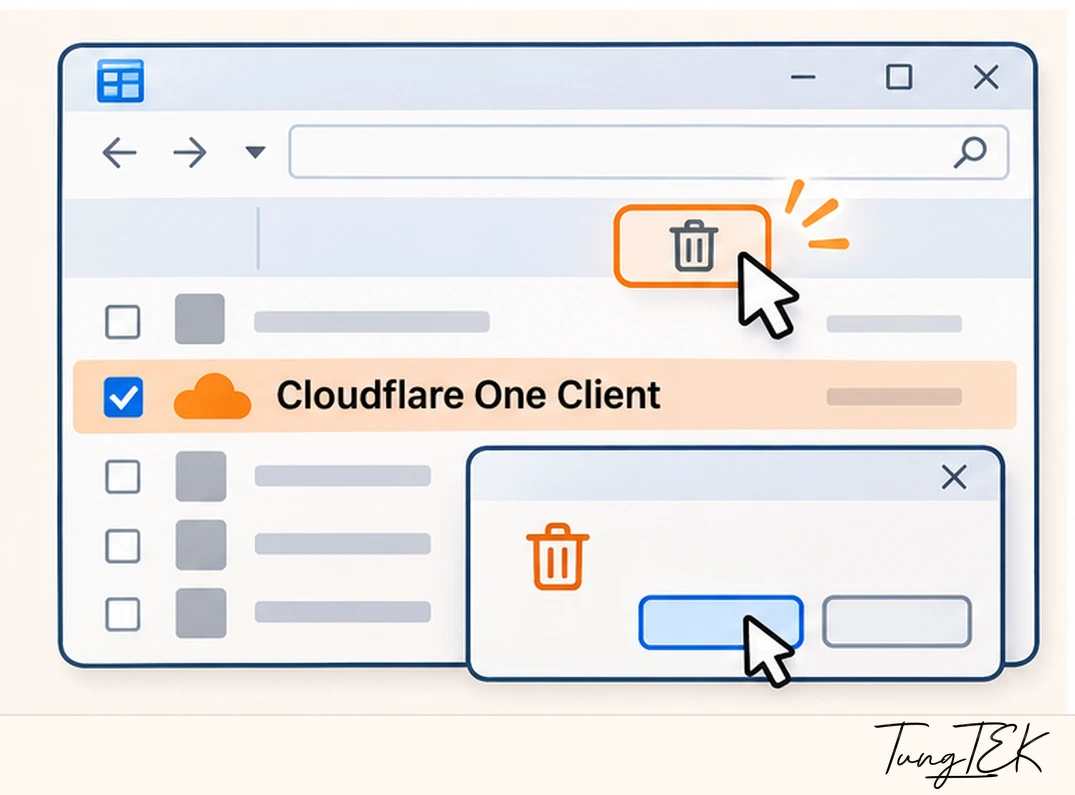
Find Cloudflare One Client in the list. Select the application, choose Uninstall or Uninstall/Change and follow the wizard. If the confirmation dialog names the correct application, select Yes.
When Windows requests administrator access, use an account approved by IT. If the installer asks for an uninstall code, contact your company's Cloudflare administrator for the device-specific code. Using the uninstaller handles the application components through the vendor's removal process.
Step 4 — Restart and check connectivity
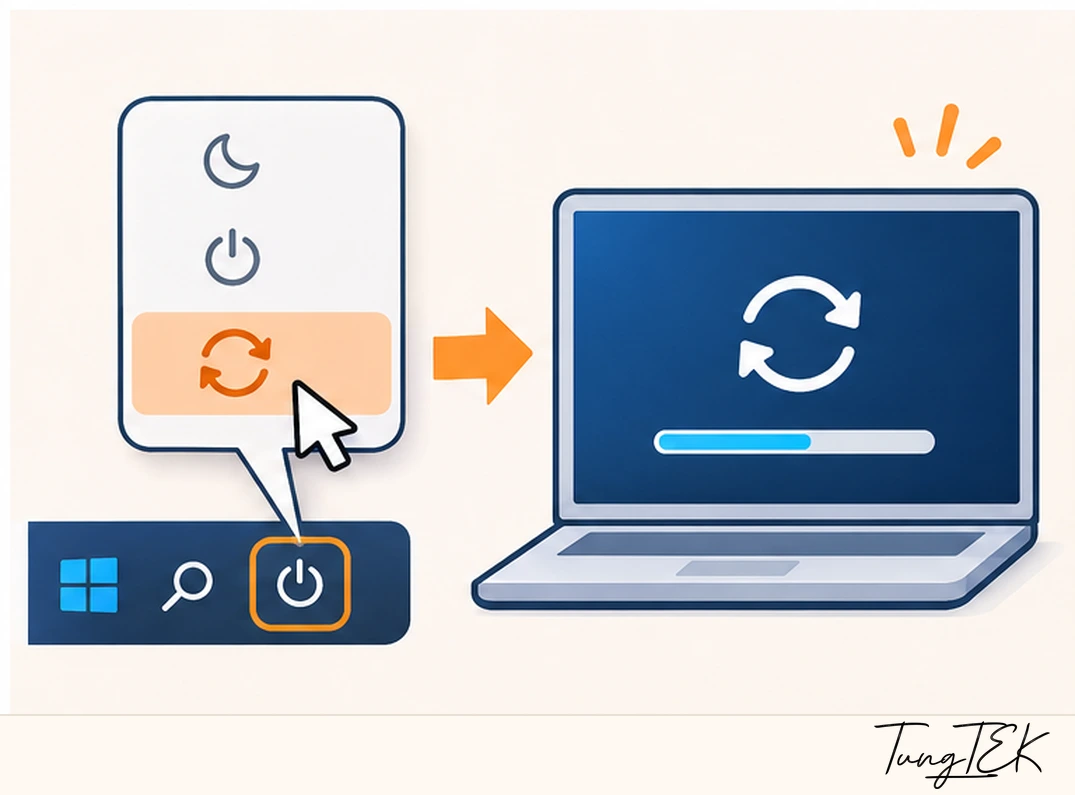
Once the uninstaller reports completion, save any remaining work and choose Start → Power → Restart. Restarting lets you verify the device state in a new Windows session.
Sign in again, open Installed apps or Programs and Features and look for Cloudflare One Client. Then test Internet access, internal applications and the network resources you normally use.
Three checks after removal
For company devices, report the results to IT so the change can be confirmed.
- The application is absent from Installed apps or Programs and Features after restarting.
- Internet access and required internal applications and network shares work. If access fails, record the error and contact IT to check DNS, VPN or internal access configuration.
- The application stays removed. If it returns, record the time, device name and preceding activity to help identify the deployment source.
If the application returns or appears on several devices
Cloudflare supports deployment through management tools such as Intune, Active Directory and scripts that run an MSI installer. An active deployment policy may therefore reinstall the application after a user removes it.
IT should correlate the observed time with the following records and determine which policy needs adjustment. Each item is an investigation lead that needs confirmation from logs or change history.
- Application deployment history in Intune/MDM or RMM tools, including assigned device groups and installation status.
- GPO settings, sign-in scripts, scheduled tasks and software packages used during device setup or handover.
- Windows Installer logs and IT change records for the same period. Correlate the executing account and installer source where records are available.
Frequently asked questions
Can uninstalling Cloudflare One Client interrupt network access?
DNS or access to company resources may be affected when the device depends on Cloudflare configuration. Confirm with IT before making changes and test Internet access and internal applications afterward.
What if there is no Exit option or Cloudflare tray icon?
Open Installed apps or Programs and Features directly to check for the application and follow its uninstaller. Tray options depend on the version and management policies.
Where do I get the uninstall code?
Your organization's Cloudflare administrator supplies a valid code for the device. Send the device name or other requested details through your internal support channel.
Does closing the interface complete the removal?
The background service may keep running after the interface closes. Complete removal with the Windows uninstaller and check the applications list again after restarting.
Official references
Checked against Cloudflare documentation on 12 November 2026. Interface and management options may change between versions.